If your Chrome bookmarks have become difficult to scan, the first fix is usually not another tool. Chrome already gives you a bookmarks bar, folders, Bookmark Manager, search, sorting, and import/export controls. A small or well-maintained collection can work perfectly well with those built-in tools.
The harder problem appears when saved links lose their context: work and personal references mix together, active projects disappear into deep folders, vague names stop meaning anything, or frequently used resources are technically saved but rarely visible. The framework below starts with Chrome itself, then explains when a more visual workflow can be useful.
Why bookmark collections become hard to manage
Bookmark clutter is usually a structure problem rather than a storage problem. Common warning signs include:
- many folders that overlap or no longer reflect how you work;
- deeply nested folders that require several decisions before you reach a link;
- names such as “Stuff,” “Misc,” or “Links” that no longer tell you what belongs inside;
- duplicates and temporary references that stayed long after their purpose ended;
- work, personal, learning, and project material mixed into one long list;
- frequently used links buried beside long-term reference material.
You do not need to fix all of these at once. Start with the parts that make retrieval frustrating today.
Start with Chrome's built-in bookmark tools
Chrome's native bookmark system is capable enough for many people. The Bookmarks bar keeps frequently used links and top-level folders visible. Bookmark Manager lets you create folders, move bookmarks with drag-and-drop, edit or delete entries, and sort bookmarks. Chrome also exposes bookmark search in its bookmark views.
On desktop, you can search saved bookmarks directly from the address bar by typing @bookmarks, pressing Tab or Space, and entering keywords. Chrome also supports importing bookmarks from an HTML file and exporting your bookmarks to HTML when you need a portable copy.
Google documents these controls in its current Chrome bookmark help, import and export guidance, and its explanation of address-bar bookmark search.
A practical way to organize a large bookmark collection
1. Remove obvious clutter
Delete links that are clearly obsolete, exact duplicates you no longer need, and temporary references whose job is finished. Be conservative with anything you may need for records or long-term research. The goal is to remove noise, not to force an aggressive cleanup.
2. Organize by context
Start with a few contexts that match how you actually use the web: Work, Personal, Learning, Research, or a current project such as Project Alpha. Context is often easier to maintain than a taxonomy based on every website type or subject you might encounter.
A link to documentation, for example, may be more useful inside the project where you need it than inside a giant “Documentation” hierarchy shared by unrelated work.
3. Keep folder depth shallow
Folders are useful, but each additional level adds another choice during saving and another step during retrieval. Prefer a small number of meaningful layers. There is no universal maximum depth: a research archive may need more structure than a set of daily tools. The test is whether you can predict where a link lives without repeatedly opening folders to remember.
4. Use names you can recognize later
Folder and bookmark names should make sense months after you create them. Short names are good when they stay specific. Replace vague labels only when they have stopped helping you distinguish one collection from another.
5. Keep frequently used links visible
Use the bookmarks bar for a small number of links or top-level folders you open often. You can also keep important folders near the top of Bookmark Manager. If opening a New Tab is already part of your browsing rhythm, a visual New Tab organizer is another way to keep active links visible without turning the bookmarks bar into a long row.
6. Separate active projects from long-term reference material
Daily tools, temporary project research, and durable reference material have different lifecycles. Keeping them separate prevents an active project from being buried in an archive and prevents old reference material from crowding the links you use every day.
7. Review the system when it starts to feel inaccurate
You do not need an arbitrary weekly or monthly cleanup ritual. Review a folder or context when you notice that its contents no longer match the name, temporary material is accumulating, or you are repeatedly searching for links you thought should be obvious.
8. Know when folders stop being enough
If the folder structure is understandable but you still struggle to see the right links at the right time, the problem may be visibility rather than storage. That is where a visual organizer can offer a different workflow instead of simply adding another layer of folders.
When Chrome folders are enough
Stay with Chrome's built-in bookmarks when your collection is small, your folders are easy to predict, the bookmarks bar exposes the links you use most, and search reliably gets you to the rest. Native bookmarks are simple, portable through HTML export, and integrated directly with the browser. There is no benefit in replacing a system that already makes retrieval easy.
When a visual bookmark organizer makes more sense
A visual organizer becomes more relevant when you want persistent context rather than a deeper archive: separate project areas, visible groups of related links, drag-and-drop rearrangement, or a useful overview each time you open a New Tab.
That does not make visual organization universally better. It is a different answer to a different problem: keeping active links visible and grouped around the work or context where you use them.
How Mirsah approaches bookmark organization
Mirsah replaces the New Tab page with a visual workspace for saved links. Workspaces separate contexts, Groups keep related links together inside a Workspace, and drag-and-drop lets you adjust that structure without rebuilding it. Search looks through links saved in your Workspaces and Groups. Quick Save is a user-triggered way to carry the current page's title and URL into Mirsah and finish choosing where it belongs.
If you already have browser bookmarks, Mirsah can request the optional bookmark permission when you choose a supported direct browser import. The permission is not required just to read this guide or browse the website; the Privacy page explains the browser-access boundary in more detail.
For the complete product workflow, see Mirsah Features. If you decide the model fits your problem, Getting Started covers the shortest setup path.
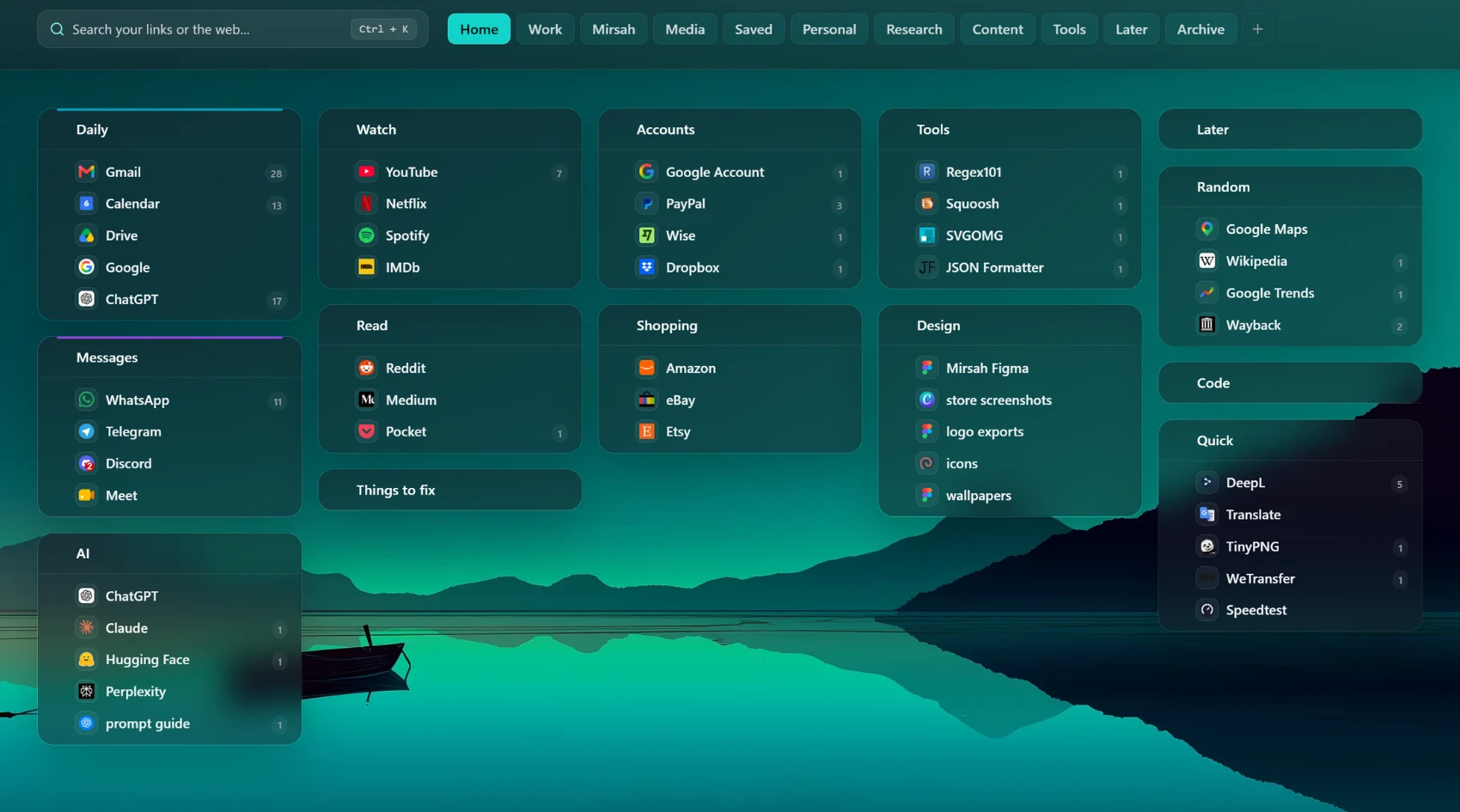
A simple context-based setup example
Work Workspace
- Current Project
- Internal Tools
- Documentation
- Research
- Client Resources
Learning
- Courses
- Documentation
- Reading
- Practice
Personal
- Travel
- Finance
- Shopping
- Recipes
These are examples, not a required Mirsah structure. The useful principle is to name contexts and groups after how you expect to retrieve the links later.
Final practical takeaway
Start by making Chrome's existing bookmark structure easier to predict: remove obvious noise, organize around useful contexts, keep nesting under control, name things clearly, and keep active links visible. If that solves the problem, stop there.
If your collection is organized but still feels hidden, try a visual workflow that keeps active contexts in front of you. The important shift is not from “folders” to “no folders”; it is from storing links somewhere to making the right links easy to see and retrieve.
Want your active bookmarks visible on every New Tab?
See how Mirsah uses Workspaces, Groups, Search, Quick Save, and drag-and-drop without changing the organization advice above.